Editing pages
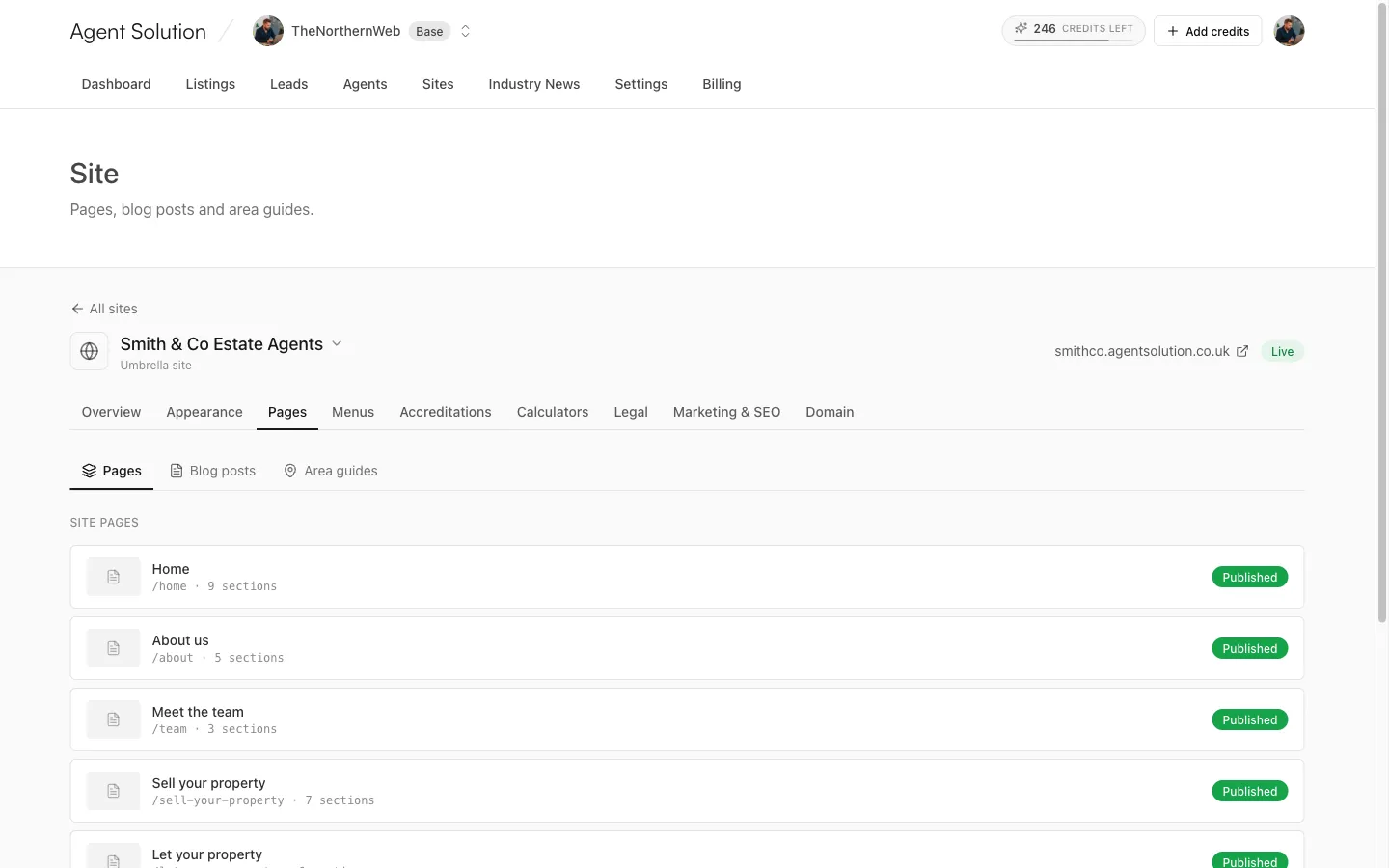
Open the site’s Pages tab. It has three sub-tabs: Pages, Blog posts and Area guides. This guide covers the first; the other two are in Blog & area guides.
Your pages
Section titled “Your pages”Two kinds of page:
- Site pages: the seven every site has, pinned in order: Home, About, Team, Sell, Let, Valuation, Contact. Home is always published and can’t be deleted; the others can be unpublished but not deleted.
- Landing pages: your own custom pages (a spring valuation campaign, a new-development page, anything). Create one with New page.
Every page row shows its address and section count plus a Published or Draft badge.
How a page is built
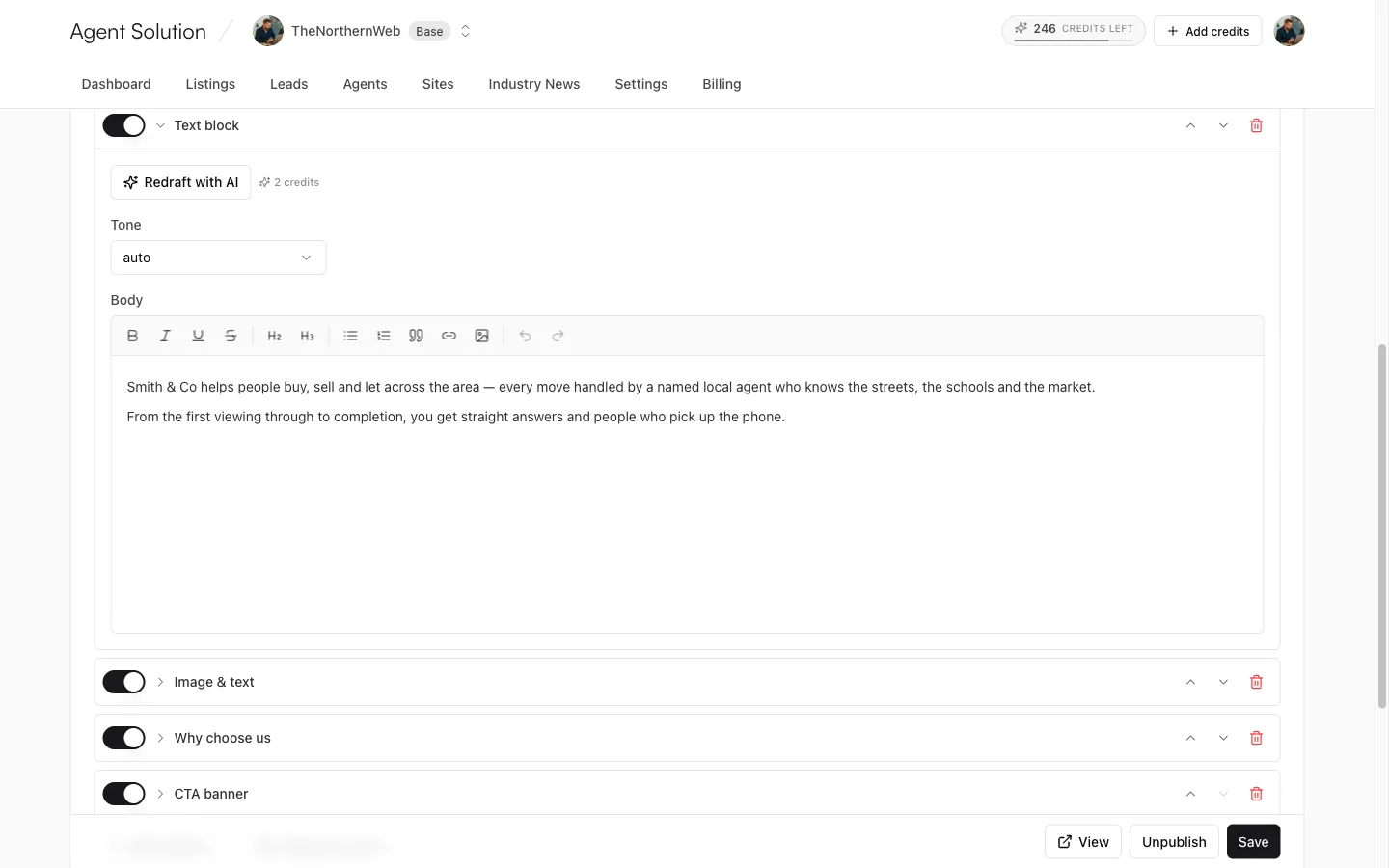
Section titled “How a page is built”A page is a stack of sections: a hero, a property carousel, a text block, a call-to-action band and so on. In the editor each section is a card you can:
- Show or hide with the switch (hidden sections stay in the stack, marked “hidden”, so you can bring them back later).
- Reorder with the up and down arrows.
- Remove with the bin icon.
- Expand (click the name) to edit what’s inside.
Inside an expanded section you’ll find, depending on the section type:
- A Layout picker where the section has design variants.
- A Tone setting (Auto, Light or Dark) controlling the section’s background treatment.
- Copy and media slots: rich text editors for body copy, image pickers (from the
shared media library), button fields (a label plus a destination like
/contactor a full URL), and short text fields with character counters. - Item lists where a section holds repeating items (for example a list of selling points): add, reorder and remove items up to the section’s limit.
Add section lists everything that can go on this kind of page; new sections arrive seeded with sensible default copy, ready to edit.
Writing with AI
Section titled “Writing with AI”Three AI helpers live in the page editor (each shows its credit cost on the button):
- Compose this page with AI (4 credits): describe the page in a sentence or two, for example “A spring valuation landing page for sellers in Bath, with social proof and a clear booking CTA”, and the AI builds the full section stack for you to edit. It runs in the background; you can leave the page and the draft waits in your Pages list with a Review button. On a page that already has sections, it replaces them.
- Redraft with AI (2 credits): inside any section, rewrites just that section’s copy. Layout and images are untouched.
- Generate SEO with AI (1 credit): fills the SEO title and meta description for you to review.
More on how drafting works and what the AI will and won’t do: Writing with AI.
Restore defaults
Section titled “Restore defaults”System pages have a Restore defaults button that replaces the page’s title and sections with the personalised starting blueprint. You’re asked to confirm, since it replaces your content.
Search engine listing
Section titled “Search engine listing”At the bottom of every page editor: SEO title (defaults to the page title) and Meta description. Fill them, generate them with AI, or leave the defaults.
Saving and publishing
Section titled “Saving and publishing”Save sits in a bar that’s always reachable while you scroll, alongside a View link (once published) and the Publish/Unpublish toggle. Save first, then publish. Changes to a published page are live as soon as you save; the homepage is always published.