Team & roles
There are two team ideas in Agent Solution, managed in two places:
- Who can sign in to the portal, in Settings → Team.
- Who appears on your website, on the Agents tab (the page is titled Team).
| Role | What they can do |
|---|---|
| Owner | Everything. There’s always at least one owner. |
| Admin | Full access: all sites, CRM, billing and team. |
| Editor | Can edit the sites you choose; no billing, no Industry News, no domain or marketing settings, no team management. |
An editor responsible for exactly one site is taken straight into that site’s workspace when they open Sites.
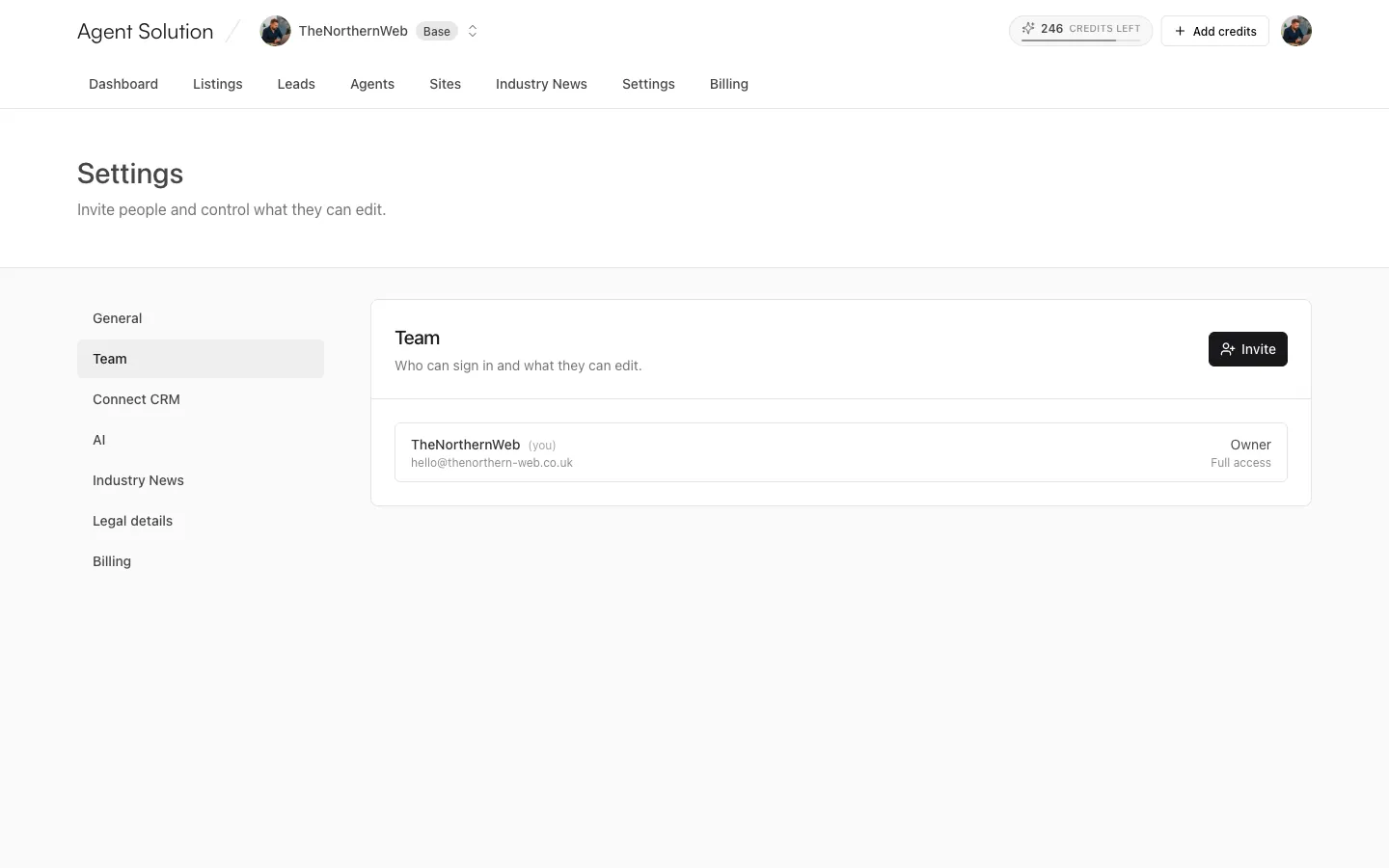
Inviting someone (Settings → Team)
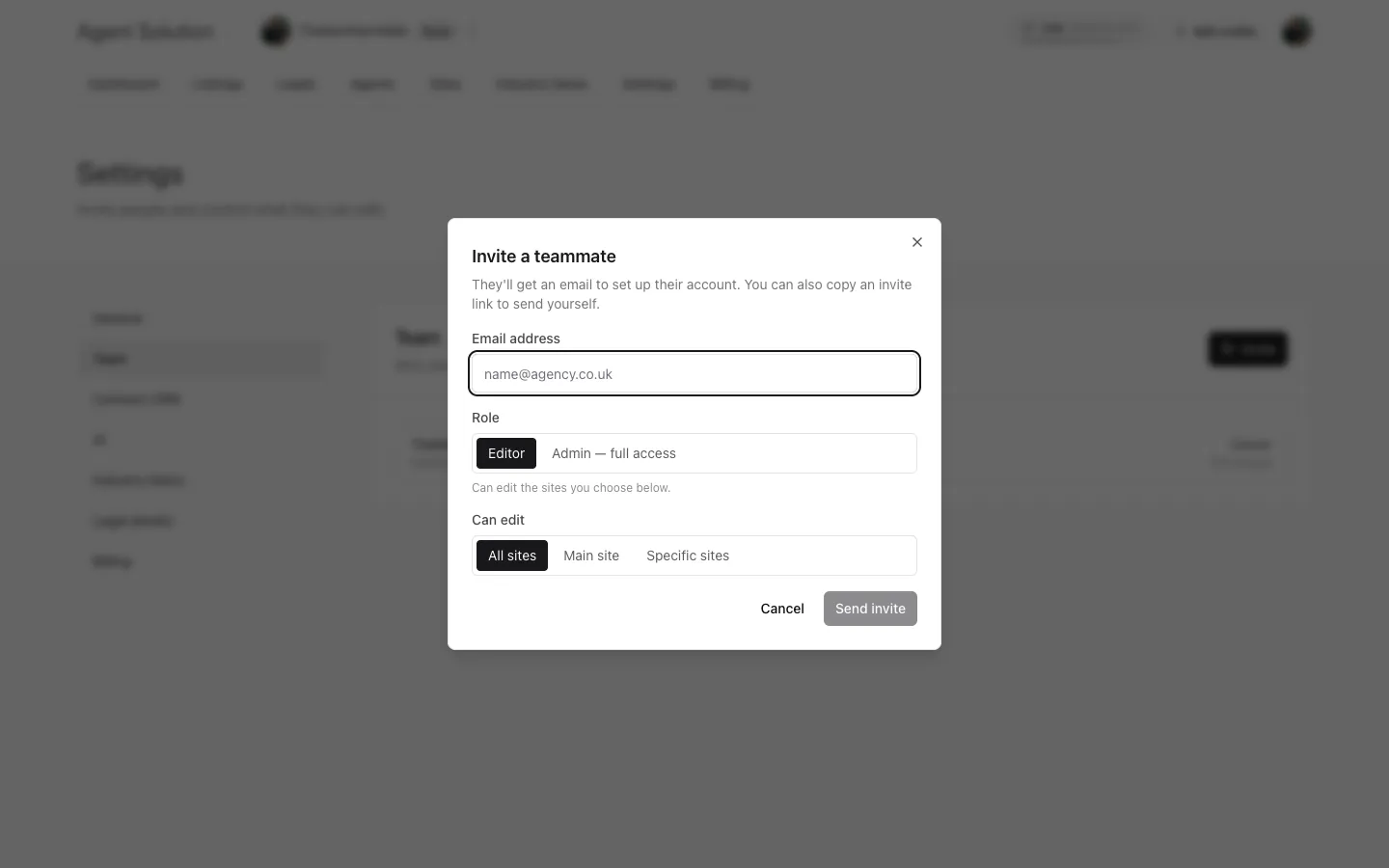
Section titled “Inviting someone (Settings → Team)”- Press Invite and enter their email address.
- Pick a role: Admin (full access) or Editor.
- For editors, choose what they can edit: All sites, Main site, or Specific sites (tick the branch or agent microsites they look after).
- Send invite. They get an email to set up their account, and you also get a sign-up link to copy in case the email doesn’t arrive; they must sign up with the invited address.
From each member’s menu you can Edit access (change role or site scope), Resend invite, Copy invite link, or Remove.
The website team (Agents tab)
Section titled “The website team (Agents tab)”The Agents tab manages the people your websites display. Agents import from your CRM automatically on connect and on every sync; you can add anyone else by hand with Add team member (name, job title, photo, office, bio, contact details and social links).
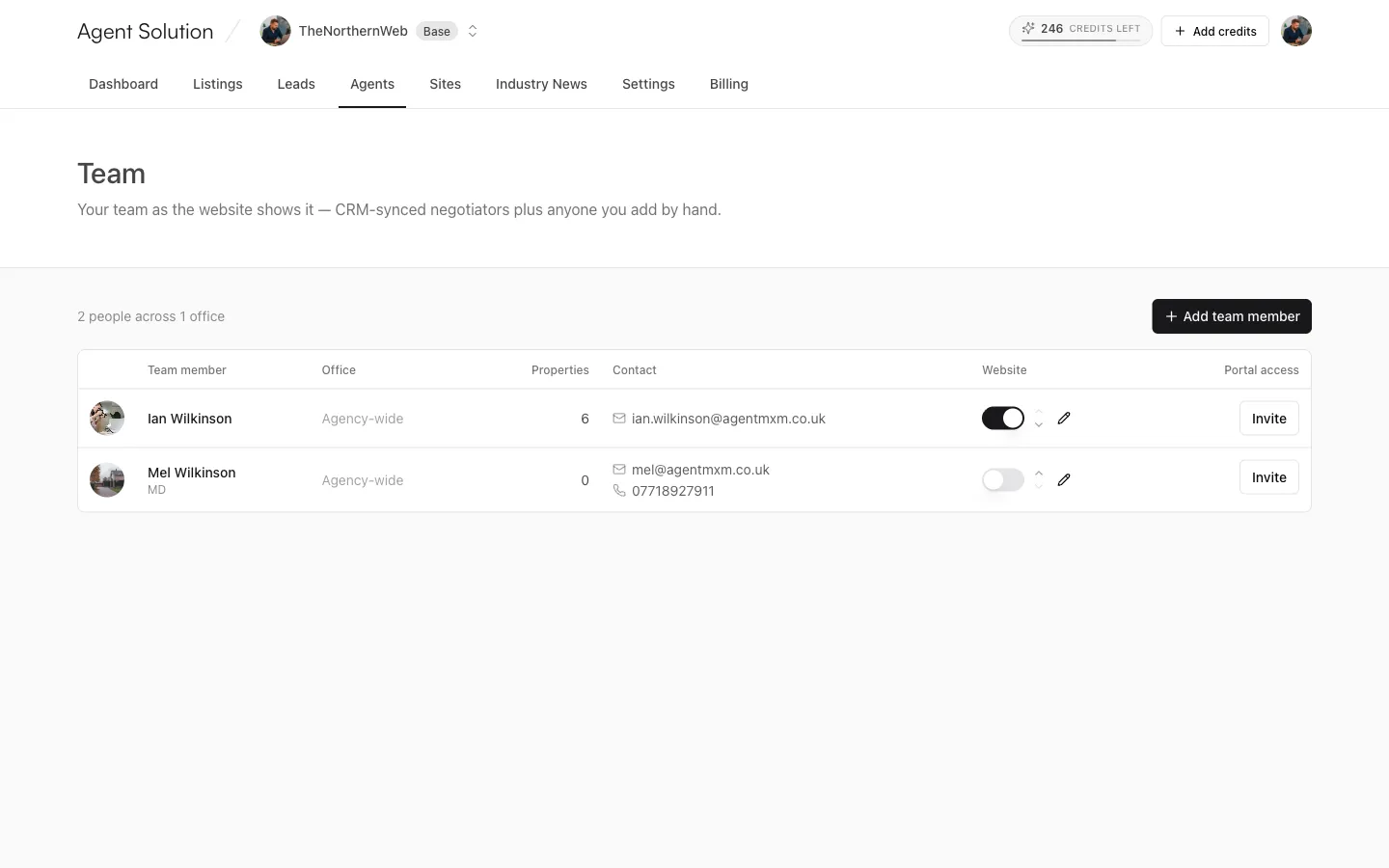
Per person, owners and admins control:
- Show on website: a toggle per person.
- Display order: up and down arrows; your site’s team page follows this order.
- Edit: for hand-added members, everything. For CRM-synced members the name stays synced from the CRM, and you can override the photo, bio, contact details and social links just for the website (leave a field blank to use the CRM value).
- Portal access: an Invite button right in the table sends a portal invite to any agent with an email address; you’ll see an Invited badge, then Editor once they’ve joined.
Agents can also have their own microsites; see Adding sites.