A tour of the portal
Sign in and you land on the Dashboard. Across the top: Dashboard, Listings, Leads, Agents, Sites, then (for owners and admins only) Industry News, Settings and Billing.
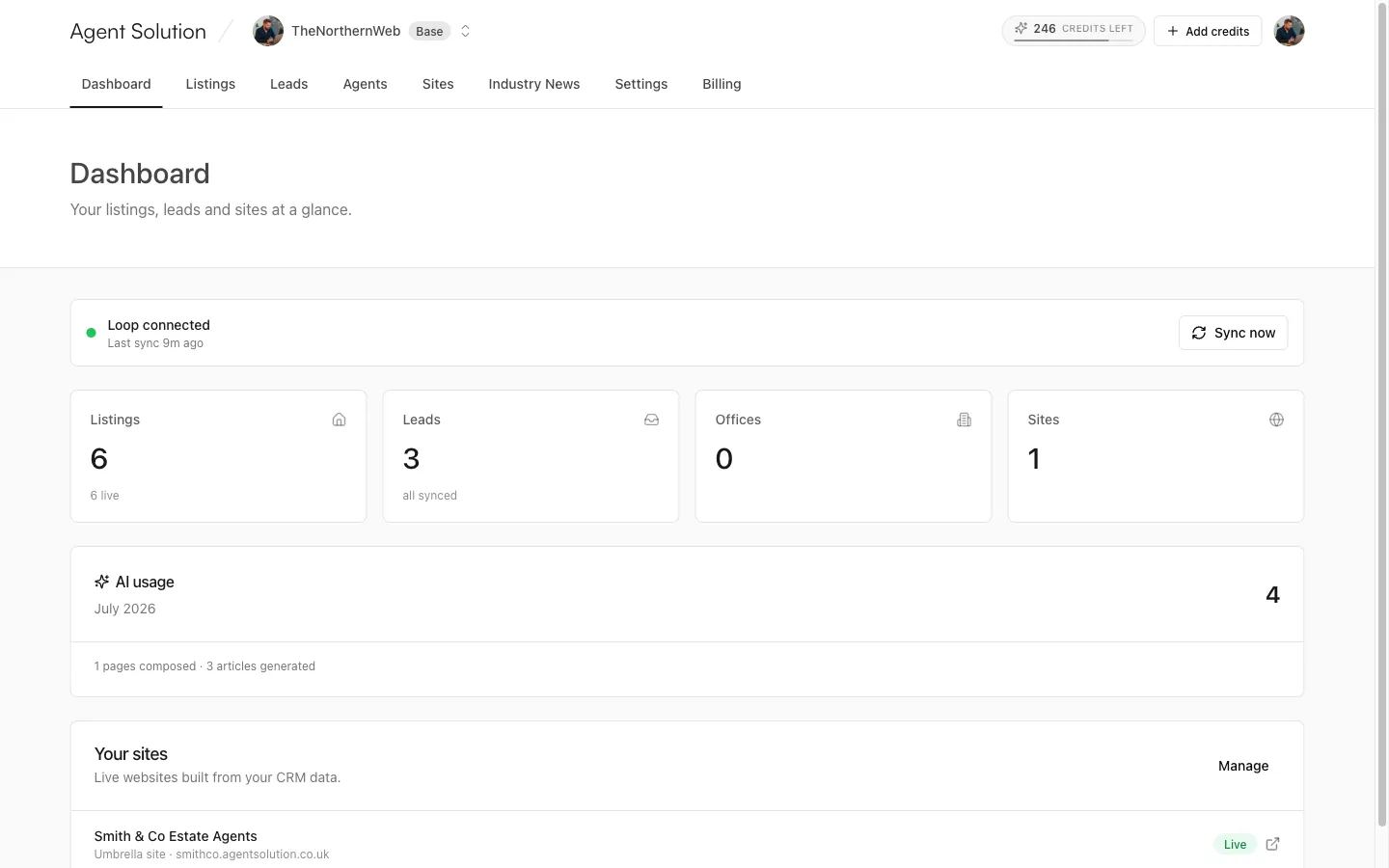
The dashboard
Section titled “The dashboard”The header strip is your CRM status banner: a green dot with “{Your CRM} connected” and when the last sync ran (“just now”, “5m ago” and so on). While a sync is running you see “Syncing now…”. Owners and admins also get a Sync now button to trigger a manual sync. If no CRM is connected yet, this banner becomes a link to the connect screen.
Below it, four stat cards:
| Card | What it shows |
|---|---|
| Listings | Total imported properties, with how many are live. Click through to the Listings tab. |
| Leads | Total leads. If any need attention (a failed or pending CRM write-back) the card flags the count in amber; otherwise it reads “all synced”. |
| Offices | How many branches imported from your CRM. |
| Sites | How many websites you’re running. Click through to Sites. |
Owners and admins also see an AI usage card (this month’s generations) and everyone sees Your sites, a quick list with each site’s type, domain, and a Live or Draft badge, plus an open-site link.
The other tabs, briefly
Section titled “The other tabs, briefly”- Listings: everything imported from your CRM, searchable and filterable. Read-only by design; the CRM stays the source of truth. Details: Your listings.
- Leads: every enquiry, valuation and viewing request captured on your websites, with live CRM write-back status per lead. Details: How leads work.
- Agents (the page itself is titled Team): the people shown on your website, synced from your CRM plus anyone you add by hand. Details: Team & roles.
- Sites: one card per website; click Manage to open that site’s workspace. Details: The site workspace.
- Industry News (owners/admins): AI-scored property news you can turn into local bulletins. Details: Industry News.
- Settings and Billing: agency-wide configuration, subscription and credits.
The avatar menu
Section titled “The avatar menu”Top right, always available:
- Your plan chip and credits (on phones this menu is the only place they show; on desktop the credits chip sits in the nav with a live “credits left” count and bar).
- Settings.
- Theme: Light, Dark or System. The portal remembers your choice.
- Log Out.
Who sees what
Section titled “Who sees what”The portal has two levels of access:
- Owners and admins see everything, including Industry News, Billing, manual sync, lead retry buttons, team management and credit top-ups.
- Editors (branch team members you invite) get the day-to-day tabs scoped to their work. An editor who looks after exactly one site is taken straight into that site’s workspace when they open Sites.
More in Team & roles.