Your listings
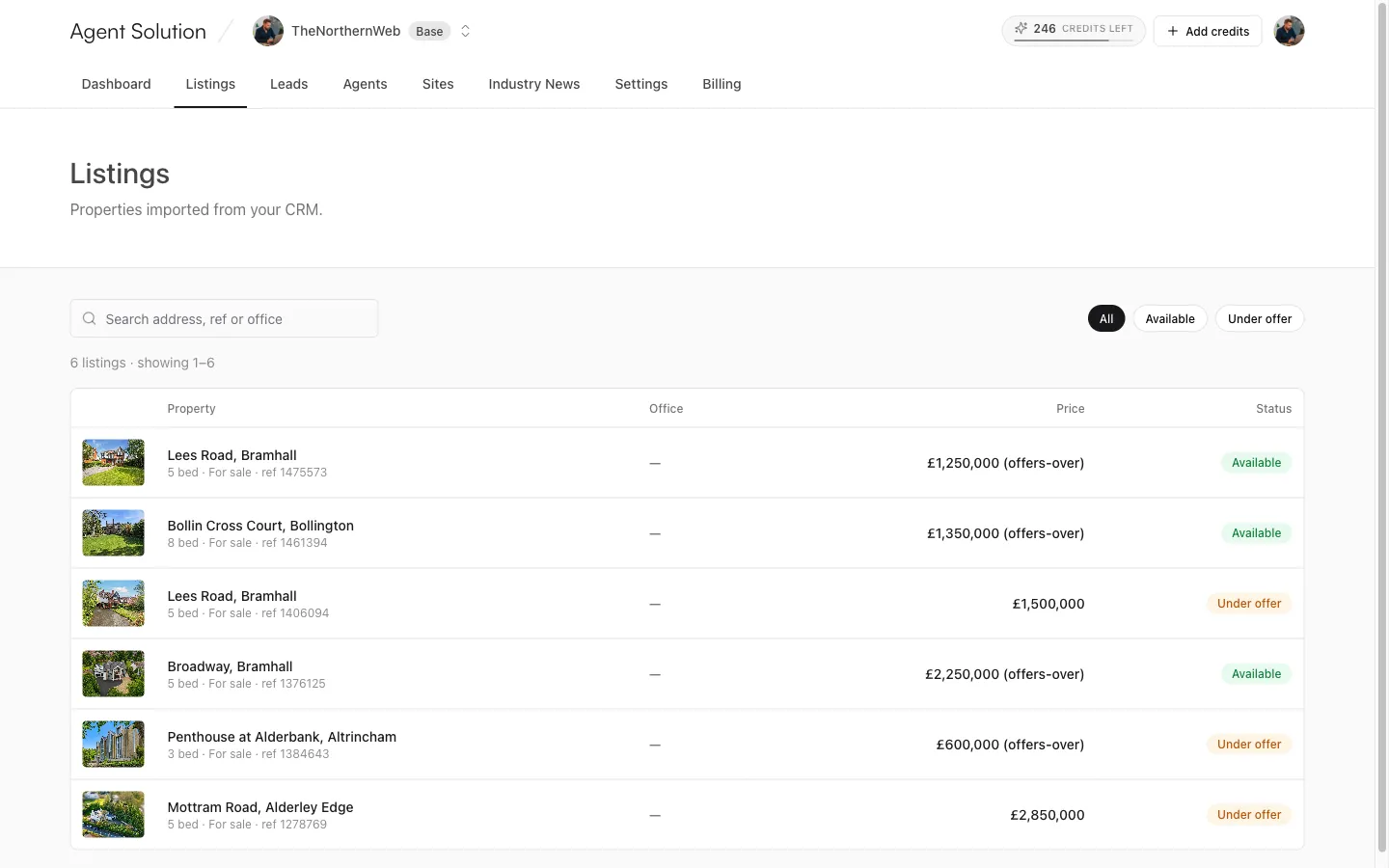
The Listings tab shows every property imported from your CRM. It’s deliberately read-only: your CRM stays the source of truth, and anything you change there (price, status, photos, details) flows through automatically. There’s nothing to maintain in two places.
Finding a listing
Section titled “Finding a listing”- Search by address, reference or office name.
- Filter with the status chips: All, plus whichever of Available, Under offer, Sold, Let and Withdrawn you currently have.
- Listings page at 25 per row-count with Previous/Next controls. (Very large portfolios: the table loads the first 2,000 rows and asks you to refine your search for more.)
What each row shows
Section titled “What each row shows”Thumbnail, address, the bedroom count, whether it’s for sale or to let, the CRM reference, the office, the price (with rent frequency for lettings and any price qualifier for sales), and its status badge.
If something looks wrong
Section titled “If something looks wrong”Fix it in your CRM; it syncs through. To hurry a change along, owners and admins can press Sync now on the dashboard banner or in Settings → Connect CRM. If a listing still looks off after a sync, see How CRM sync works or contact us.