Custom domains
Every site is live from day one on its .agentsolution.co.uk address. Pointing your own
domain (for example www.youragency.co.uk) takes a few minutes in the site’s Domain
tab.
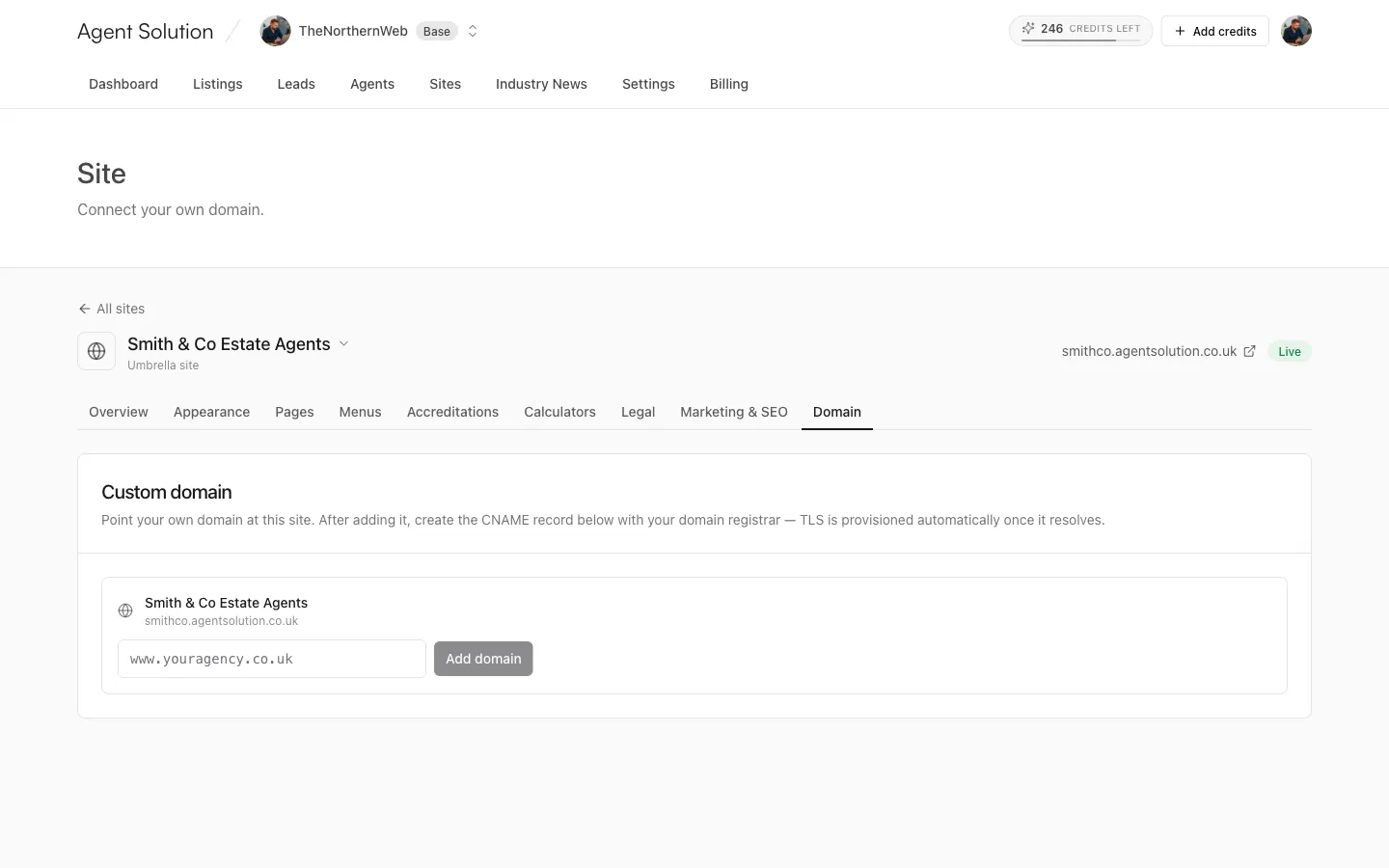
Point your domain
Section titled “Point your domain”- Open the site’s Domain tab and type your domain (the form expects something like
www.youragency.co.uk; if the format’s wrong you’ll be asked for a valid domain such asexample.co.uk). Press Add domain. - The tab shows the exact CNAME record to create at your registrar:
- Type: CNAME
- Name: your subdomain label (for example
www), or@if you entered a bare apex domain - Target:
ssl.agentsolution.co.uk(there’s a copy button)
- Create that record at your DNS provider.
- Back in the Domain tab the status badge shows Verifying…; press Check status any time to re-check. Once DNS resolves it flips to Active. This is usually minutes but can take longer while DNS propagates.
HTTPS certificates are issued automatically once the domain verifies. There is nothing else to configure.
Remove disconnects the domain instantly and the site falls back to its
.agentsolution.co.uk address.
Apex domains (no www)
Section titled “Apex domains (no www)”If you want youragency.co.uk bare, your DNS provider must support CNAME flattening
(sometimes called ALIAS or ANAME) at the apex. The simple alternative most agencies
use: point www with the CNAME above, then add a redirect from the bare domain to
www at your registrar.
Troubleshooting
Section titled “Troubleshooting”- Stuck on Verifying? The CNAME usually hasn’t propagated yet; check the name and target for typos. If your DNS provider has a proxy toggle on the record, turn it off while verifying. A restrictive CAA record on your domain can also block certificate issuance.
- Error status? Press Check status to re-query; if it persists, remove and re-add the domain, and get in touch if it still won’t verify.
- Domain still carries your old website? Create the CNAME when you’re ready to switch. The moment DNS updates, visitors see the new site.